FAQ
Debugging and support
Due to the high volume of emails and messages, I can’t always answer all of them and ask you to do your own research / best effort first. If you have issues, read through the comments and do a google / blog search and carefully examine the log in %appdata% or get a product with support.
If that doesn’t help and you need more help, download Fiddler and create a .saz recording of the issue make sure you enable SSL decrypting in the telerik options tab, it’ll install a certificate locally if this fails the log is useless. If you use ADFS, read below on how to use Fiddler with ADFS. Send that, your .ps1 file (with the configured params) and the .log file from %appdata% to me.
I cannot offer any guarantees but if i have time, I’ll try to help you out, but only if all logs / info is provided.
Failed to load Edge Driver
Check blocking GPO’s, Proxies, Firewalls, etc etc. Do this by starting with a non-domain joined clean W10/W11 machine with the latest Edge as an admin user and work your way up from there by re-introducing policies. If you find the culprit, please also let us know!
Restrictions when redirecting folders
The ‘Downloads’ folder can be redirected but existing content won’t be moved to Onedrive. In addition, if you have set any type of redirection through Group Policy, the script will be unable to redirect folders for your user as GPO’s take precedence.
Files are not visible or a folder is empty
A folder should not have more than 5000 items in it. This is a known limitation with Sharepoint, which trickles down to WebDAV. There is some client side tweaking by modifying FileAttributesLimitInBytes that you can attempt, but try to split up into multiple folders or libraries before you hit this number.
Office asks me to sign in
Try signing out of Office and signing back in to see if that fixes the issue. If you have the Onedrive client installed, check the Office tab in Onedrive’s config
Adobe Reader prompts for sign in when opening PDF files on a mapped drive
Add the following registry key (thanks to Martin Wedege Bohse for supplying it!):

Can I map the ‘Shared with me’ folder?
No, this is not an actual folder but a virtual folder. Microsoft’s WebDAV client does not support such folder types and therefore does not display them in your mapping.
What about Cryptolockers?
As you’re creating a drivemap, the data is easy to find for ransomware, and can thus be encrypted. But your data is actually far safer than on traditional fileshares, because Sharepoint and Onedrive have version control. The encryption will trigger a new file version, meaning your RPO is 0, no data is lost! Restoring a backup is more work and causes dataloss. Oh, and version control is enabled by default 🙂
How do I run the script from a shortcut?
How do I run the script from a GPO?
First off, do not run it as an embedded powershell script. Add it under ‘scripts’ as a normal script with commandline/name:
Powershell.exe
Then the arguments or parameters you should specify are:
-ExecutionPolicy ByPass -WindowStyle Hidden -File <PATH TO OnedriveMapper_v2.33.ps1>
if you omit -WindowStyle Hidden the script will execute visibly. File HAS to be the last parameter.
ERROR | Failed to set a cookie: Exception calling “SetWinINETCookieString” with “3” argument(s): “Exception setting cookie: Win32 Error code=4317”
I’m not sure about the cause, but this can be fixed by resetting Internet Explorer. The cookie is required for the WebDav client’s auth to O365. Sometimes you may have to delete the cookie from the webcache folder: https://social.technet.microsoft.com/Forums/ie/en-US/4cdf4e19-0ce7-46a8-b1db-a9ea33009822/ie11-not-saving-cookies-on-exit-windows-10-1803
How can I use an ADFS smartlink to speed things up?
An ADFS smartlink can significantly speed up your logon process and reduce complexity (so, less chance for errors). If you don’t know how to make an ADFS Smartlink, google it.
Make an ADFS smartlink to “https://{YOUR TENANT NAME}-my.sharepoint.com/_layouts/15/MySite.aspx?MySiteRedirect=AllDocuments”, replace the tenant name with your tenant, example: “https://ogd-my.sharepoint.com/_layouts/15/MySite.aspx?MySiteRedirect=AllDocuments”
Test if it works by entering this smartlink in your browser, if you get signed in automatically to Onedrive for Business, set $adfsSmartLink in the script configuration to your smartlink. Remember that this only works if ADFS signs you in automatically (usually only on premises).
How do I troubleshoot native auth with ADFS?
You may have to disable Extended Protection or alternatively play with FiddlerScript as a workaround.
The ADFS detail logs will also show why a request fails. ADFS should either do SSO or forms-based auth, if you see a popup in IE this means ADFS is not configured properly. ADFS should also support TLS v1.2.
What about maximum file sizes?
The larger the file size, the less fluent the user experience will be.
| Size | Mode | Browser based | Drivemapping |
| <128MB | Upload | OK | OK |
| <128MB | Download | OK | OK |
| <512MB | Upload | OK | OK |
| <512MB | Download | OK | OK |
| <1GB | Upload | OK | X |
| <1GB | Download | OK | OK |
| <10GB | Upload | OK | X |
| <10GB | Download | OK | OK |
| >10GB | X | X | X |
If very large files are handled (>128MB), transfers may fail depending on bandwidth and if webdav settings have been tweaked. Testing has shown that files up to 512MB usually upload or download correctly if sufficient bandwidth is available, but the dialog displayed to the user often seems unresponsive or hangs at 1% or 99% for a long time, without failing or other feedback until it suddenly completes. This speed is almost completely dependant on the bandwidth between the session and Onedrive for Business (microsoft cloud).
My mapped drive does not show the correct amount of free space, it copies my C-drive
This is by design and how Microsoft designed the WebDav client service in Windows, which is used to map the drive.
How do I map to an Office 365 Group?
Follow these instructions on how to get the Office 365 Group Webdav URL
My files are becoming locked
Assuming you already disabled WebDAV file locking support: Your library name probably contains one or more spaces, this can cause read/write issues, try mapping with a different number of spaces
I don’t use ADFS, my users have to enter their password each time them log in, why?
You’re probably using a tool (like RES?) to remove all drive mappings from the user profile upon logoff or logon. The script maps the drive persistently, so if your tooling doesn’t touch it, it’ll be back on a future logon, assuming you’re using Roaming Profiles. If the script does not detect the drive, it will go through the full mounting process.
Office applications keep prompting me for a password when I open word or excel files.
Try KB943280 to set WebDav to forward your credentials to the right server.
My users immediately see an error, and I notice that the log shows this: Het ophalen van de COM-classfactory voor het onderdeel met CLSID {0002DF01-0000-0000-C000-000000000046} is mislukt vanwege de volgende fout: 80080005.
Something (probably RES) is blocking the script from starting an Internet Explorer COM object to fetch the login token for OneDrive.
Error 67, network name not found
Try ensuring that the WebDav client is functioning properly. The WebClient service on the server should be started. You can verify functionality by manually attempting to net use, if you see the same error, try to map the OneDrive folder using the map button in Internet Explorer when in your OneDrive. If this works, your WebDav client is the root cause.
Error 53, path not found
Remove the trailing / behind the sharepoint URL. Also, make sure there are no double spaces in the library name, and that the library name is 100% sure correct (try manually mapping it and checking net use)
My Office 2013 files are getting locked, and won’t unlock
The WebDav client has a locking mechanism, if this is enabled, in some setups you may experience permanently locked files. You can disable the WebDav locking mechanism by setting this registry key to 0 (False):
HKLM\SYSTEM\CurrentControlSet\Services\WebClient\Parameters\SupportLocking
An unexpected error is keeping you from copying the folder. If you continue to receive this error, you can use the error code to search for help with this problem. Error 0x800700DF: The file size exceeds the limit allowed and cannot be saved.
Browsing directories is very slow on Windows 8 RTM and Windows 2012 RTM machines
Access Denied. Before opening files in this location, you must first add the web site to your trusted sites list, browse to the web site, and select the option to login automatically.
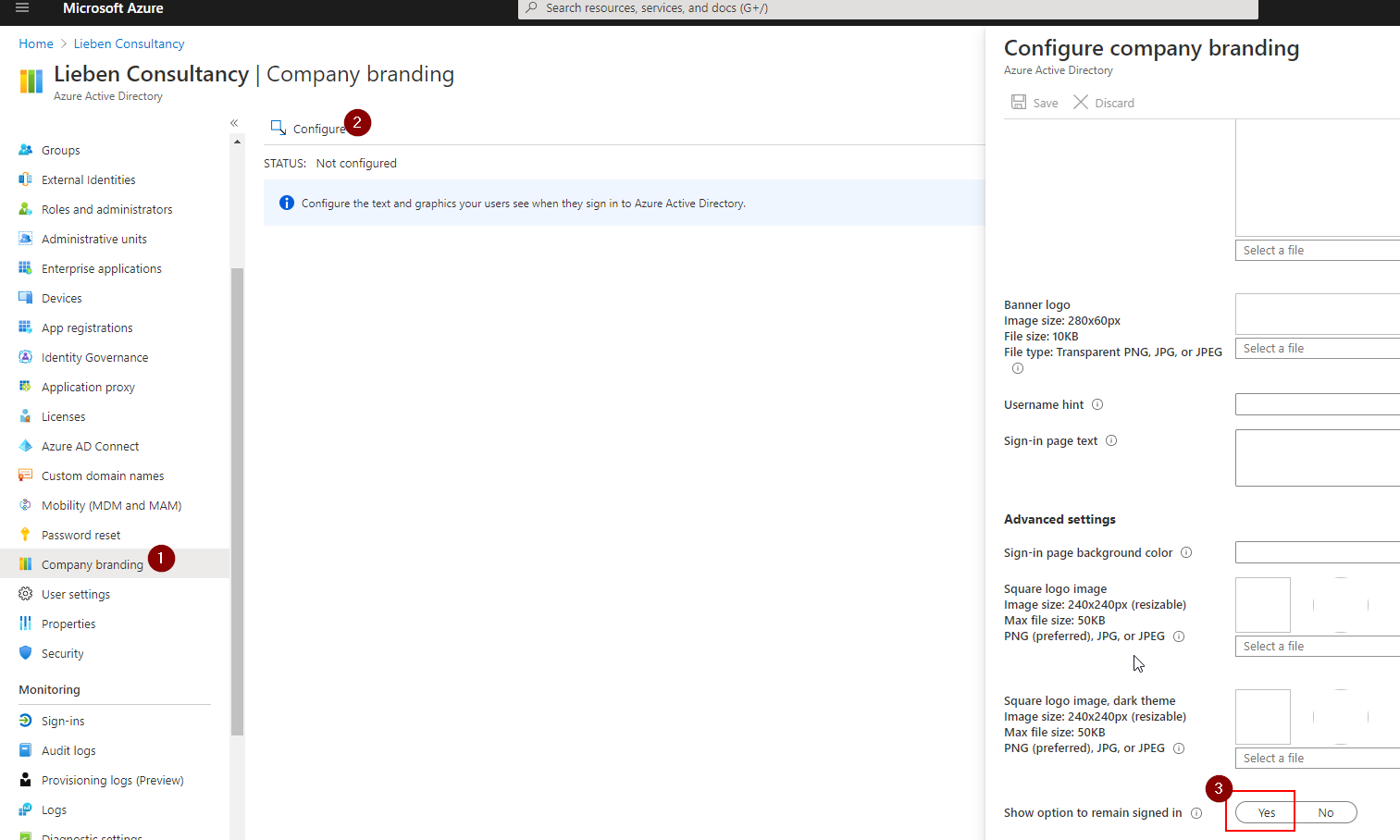
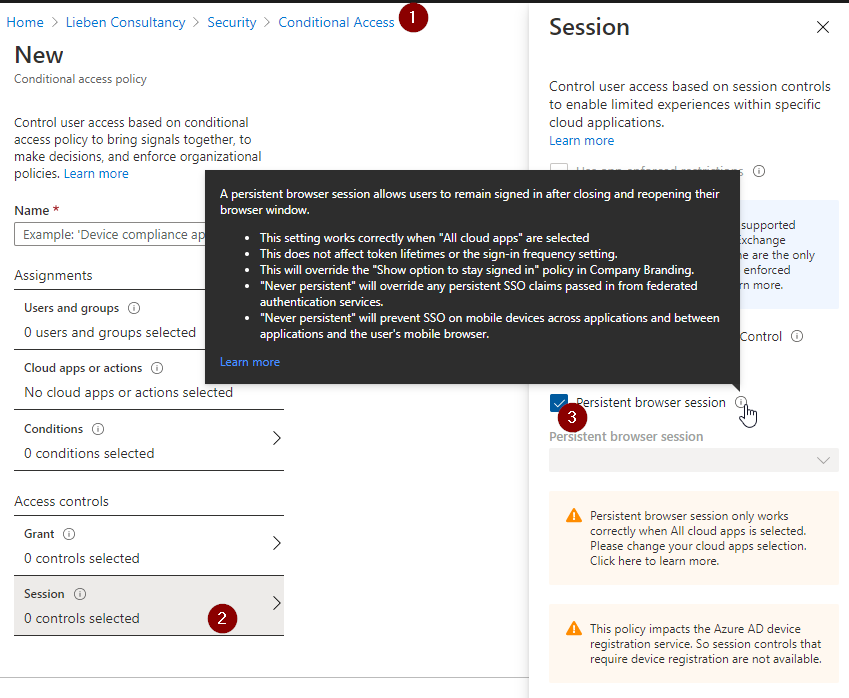
OR use a conditional access policy to always auto set KMSI:
My C-Drive fills ups
del "C:\Windows\ServiceProfiles\LocalService\AppData\Local\Temp\TfsStore\Tfs_DAV\*.*" /q /f
After a few days of inactivity, my drive becomes disonnected and I have to rerun the script to connect it again
I’m getting prompted for passwords after a reboot on another machine.
Error 224 in conjunction with ADFS (non persistent cookies)
Other
If you’re still having problems, like error 224, try installing this KB from Microsoft:
Or run the WebDAV diagnostics script by Ed Barnes
Hi
Please can you help me. We do not have ADFS and have created a script that that works great but on the first login by a user they get asked for a password 3 times and they get a message saying Mapping cannot continue because we could not log into Office 365 but it works correctly. On the second login it works great I have checked the logs and it says it could not find the password in the password cache.
Please can someone help.
Thanks
Richard
Hey i am trying running your script but getting the following error due to new sign in experience:
ERROR | ERROR: detected string error 224 in return code of net use command, this usually means your trusted sites are misconfigured or KB2846960 is missing
ERROR | failed to contact K: after mapping it to \\company.sharepoint.com@SSL\DavWWWRoot\sites\sitname\subsite\Shared Documents\Forms\AllItems.aspx, check if the URL is valid. Error:
System error 224 has occurred.
Access Denied. Before opening files in this location, you must first add the web site to your trusted sites list, browse to the web site, and select the option to login automatically.
Note: we have trusted sites added and the KB is installed.
With the recent depreciated support for IE 11 and 365 services on April 17 2021, was wandering if anyone had a solution to keep using OneDriveMapper.
We’ve got the issues coming up with the ‘Mapping cannot continue because we could not contact Office 365’.
Upon closer inspection, found that if you attempt to manually browse to the Office365 portal from the IE browser that it says this is no longer supported and to use Edge.
Has anyone experienced issue with the script (both version 3.13 and 3.14) since the update to Windows 10 Build 17134.1). We have been testing script successfully until the upgrade of a client to latest build. ERROR | Failed to set a cookie: Exception calling “SetWinINETCookieString” with “3” argument(s):
Same scripts on previous builds all running successfully, trusted sites configured etc.
https://support.microsoft.com/en-us/help/3124280/ms16-016-description-of-the-security-update-for-webdav-february-9–201 Has the “latest” version of the WebDav components I have found. It should have all the previous fixed rolled up.
Dear Jos,
As of today we have troubles with the script it hangs on this error: “Error detected while following redirect, check the FAQ for help” and I cannot find in the FAQ what the solution may be.
Could you help me maybe what the problem is ?
With kind regards,
Kiran
We are using the onedrivemapper.ps1 script and it works great !
We have one issue with the length of a filename, if it exceeds 256 characters the directory in which the file exist is shown empty (no files) using onedrivemapper. We can see the file in sharepoint (which I think has 400 characters as limitation). Is there a way to solve this issue in onedrivemapper ? Thanks!
Hi, we are having some issues using the 3.21 version of the script to map the onedrive folder for users on our RDS platform. The script works perfectly on our normal full windows 10 clients but on our server 2016 RDS session hosts the scripts fail with the error: “06/12/2019 11:42:49 | ERROR | failed to contact O: after mapping it to \\xxxxxxxx-my.sharepoint.com@SSL\DavWWWRoot\personal\xxxxx_xxxxxxx_xx_xx\Documents, check if the URL is valid. Error: System error 53 has ocurred. The network path was not found.
I have read this FAQ and it suggests that error 53 indicates an extra space or trailing character on the string for the path. However, if I paste
the path in to the run menu it will connect to the location and show the files. If I try to manually map the drive however it fails saying the location is unavailable.
I am guessing that there is a difference between the way windows handles the path string from the run menu when compared to mapping a drive but I cannot see what.
Any help would be greatly appreciated
If you get the error ” ERROR | Failed to set a cookie: Exception calling “SetWinINETCookieString” with “3” argument(s): “Exception setting cookie: Win32 Error code=0”” in a Citrix environment, then you probably have profile streaming enabled.
The error is as follows:
1. login with a new profile = everything OK!
from the 2nd login the mentioned error – disable profile streaming, then it is again OK.
I just don’t know which file/folder is the problem, then you could simply exclude it from streaming.
That cost me half a day of troubleshooting. 🙁
Greetings,
Marcus
Hi,
works fine as loginscript in version 3.21 on Client PCs.
Using it on a RDS Host however doesnt throw an error, but the explorer keeps telling me i should have set my trust relationships and check the KMSI flag.
Using the Script after the logon AGAIN repairs this and i can use the mapped drives.
Is it possible that RDS handles the cookies / Users differently?
Hi, we go through a proxy and didn’t feel comfortable allowing users through to large parts of Microsoft without authentication. I have added the line “$request.Proxy.Credentials = [System.Net.CredentialCache]::DefaultNetworkCredentials” below “$request.KeepAlive = $True” (line 330). This uses the logged in users credentials to go through the proxy and is working here for native authentication.
A minor issue: when users move files between folders in their mapped OneDrive they get a Windows Security alert “These files might be harmful to your computer”. I’ve read that adding the network location to the intranet sites should fix this, but I can’t do that if the network location is already specified under “Trusted” locations, as it needs to be to run this script. Is there a OneDriveMapper suggestion to fix this?
Hi, how do I force the script to always prompt for a username? It is only prompting for a password when I run it. Thanks.
Keep getting read only errors when opening files and also a newer version of this file is available on the server, even though the file opened is the newest version. Almost seems like a caching issues. I have cleared the webdav cache and the leiben folder cache etc any other thoughts ?
So we had an issue with pdf always asking to check files out, this took me hours to figure out I think i got it. all you need to do is put your sitename in the place of sitename in the script near the bottom
Run this powershell script as admin. *This script will make adobe not work with sharepoint if you integrate it into it. For running the powershell script to mount the sharepoint drive it works fine. read the reg keys it disables. we are running the drive map script to map a sharepoint library and i was trying to have adobe not check out the pdf
# Disable file locking in WebDAV (set SupportLocking to 0)
$webClientRegistryPath = “HKLM:\SYSTEM\CurrentControlSet\Services\WebClient\Parameters”
$lockingKeyName = “SupportLocking”
$lockingKeyValue = 0 # Set to 0 to disable WebDAV file locking
Set-ItemProperty -Path $webClientRegistryPath -Name $lockingKeyName -Value $lockingKeyValue
# Set Adobe Acrobat’s registry settings for SharePoint features
$adobeFeatureLockDownPath = “HKLM:\SOFTWARE\Policies\Adobe\Adobe Acrobat\DC\FeatureLockDown”
$cSharePointKeyName = “cSharePoint”
$cSharePointDisableValue = 1 # Set to 1 to disable SharePoint features
# Ensure the FeatureLockDown key exists; create it if it doesn’t
if (-not (Test-Path $adobeFeatureLockDownPath)) {
New-Item -Path $adobeFeatureLockDownPath -Force | Out-Null
}
# Create the cSharePoint key and set the value to disable SharePoint features
$cSharePointKeyPath = Join-Path -Path $adobeFeatureLockDownPath -ChildPath $cSharePointKeyName
if (-not (Test-Path $cSharePointKeyPath)) {
New-Item -Path $cSharePointKeyPath -Force | Out-Null
}
New-ItemProperty -Path $cSharePointKeyPath -Name “bDisableSharePointFeatures” -Value $cSharePointDisableValue -PropertyType DWORD -Force
# Add SharePoint site to trusted sites in Internet Explorer
$trustedSitesPath = “HKCU:\Software\Microsoft\Windows\CurrentVersion\Internet Settings\ZoneMap\Domains\sitename.sharepoint.com”
$httpsKeyName = “https”
$trustedZoneValue = 2 # Value 2 is for trusted sites
if (-not (Test-Path $trustedSitesPath)) {
New-Item -Path $trustedSitesPath -Force | Out-Null
}
New-ItemProperty -Path $trustedSitesPath -Name $httpsKeyName -Value $trustedZoneValue -PropertyType DWORD -Force
Write-Output “WebDAV file locking has been disabled; Adobe Acrobat SharePoint features have been configured; SharePoint site has been added to trusted sites.”
# Restart the WebClient service to apply changes
Restart-Service -Name WebClient -Force
Getting error 53 on clients that are RDP’ing into Server 2012 and Server 2016.
The script works flawlessly on clients logging into Windows 7, Windows 10, and RDP’ing into Server 2008 R2.
Thoughts?
I do not see a “trailing /” in my script.
Hi using the scripts in GPO and have added in the login under powershell scripts is this correct? How can i get the powershell to hide for the users? You mentioned do not run the script as an embedded powershell script. Not sure what you mean. Thanks inadvance
Hi, this looks like exactly what I’m looking for, however I can’t get it working 🙁 The log file looks like it runs fine, other than the fact there is no mapping. I have turned Debug on and set auth method to IE but the debug file in empty. Please could you advise / suggest how I may go about debugging any problems.
Thanks very much in advance for any help you can give.
Hi, I have the script working well but the powershell opens up for the students to see and not hidden and just the drive mapping in bottom corner. How can i hide the powershell script please as students are closing the script before it has completed and not getting the mappings and the really younger students don’t understand and keep closing the scripts. Please anyone know how to run the script hidden via GPO. Thanks
Anyone know a fix to easily-digitally sign the script? I have the ExecutionPolicy in our environment set to RemoteSigned (for security).
Hello All. I just setup a local GPO on my workstation for testing with a logon script. I am using the standard script, not the powershell script tab. The name is powershell.exe and the parameters are:
-ExecutionPolicy ByPass -WindowStyle Hidden -File
The script runs fine after logon, but the powershell window isn’t hidden. Any ideas?
It appears on Feb 1, 2018 Microsoft has dropped the old login. It also seems something else changed since I cannot get 3.12 or 3.13 to map. I constantly get Error 224 on Windows 10 using login method 6 with stored login/password. It successfully logs in, gets to the correct location, then gives error 224. Tried complete reset of IE with no joy.
Hi, we’ve got the script working and it is a great help. Unfortunately since implementing it our users are prompted to logon to SharePoint online every time they open Internet Explorer. First time after the reboot they even have to type in their email address. Is there any way to remember / keep the user signed in in IE please? We use ADFS SSO. Many Thanks, Jan.
Just figured I’d contribute a little here. ..
I was able to get this working in my VDI enviornment after a few days of arguing with Microsoft about why it needs to work. Running Windows 7 VDI with most of the latest security updates/rollups. We are also ADFS with Azure AD sync for SSO. Had originally used “ie” as the authentication mechanism in the script, and was getting the 224 error. Based on alot of reading and research, downloaded and installed the Windows Management Framework 5.1 from MS (https://www.microsoft.com/en-us/download/details.aspx?id=54616) so that Powershell was brought up to 5.1 (it was originally v2 in the image). Updated the image, and change the script to use “native” authentication, and it works like a champ.
BTW, Microsoft support says it shouldn’t work, but for now at least I get a stay of execution…
I have been using your script for months and only occasionally does it stop working usually there is a later version which fixes it for us but this time we are on the latest so am after a bit of help with the errors, I have been through the FAQ and nothing has helped solve it.
To note nothing has changed on our network since it was last working to now so no updates to clients no policy changes no adfs changes etc.
through the appdata log these are our errors.
ERROR | IE Zone 3 protectedmode is enabled through group policy, autoprotectedmode cannot disable it. This will likely cause the script to fail.
ALWAYS GOT THIS ERROR AND IT WOULD CARRY ON AND WORK NORMALLY
INFO | No redirect to new sign in method detected
INFO | Failed to find signin element type 1 on Office 365 login page. Error details: The element otherTileText was not found (2) or had no tagName
EVERY SO OFTEN APPEARS
The script continues right to the end with lots of success’s like cookie generated and mapping drive then the errrors which end it.
ERROR | ERROR: detected string error 224 in return code of net use command, this usually means your trusted sites are misconfigured or KB2846960 is missing
ERROR | failed to contact H: after mapping it to ……., check if the URL is valid. Error:
System error 224 has occurred.
Access Denied. Before opening files in this location, you must first add the web site to your trusted sites list, browse to the web site, and select the option to login automatically.
Now all the trusted sites are correct as per guides and like I said this was working till a couple days ago and none of this has changed, all the KBs etc are also installed.
Interesting. If I run the script via GPO, and whether I pull it from a network share or a local C:\folder it completes successfully and says in the log that it mapped the drive but the drive never shows in explorer. I have it set to restart explorer. I am mapping a SharePoint Online library to an S: drive only.
If I run the script (as a regular user) on the same machine manually from the desktop with unelevated powershell it has all the same log messages in the appdata log, but the S: drive shows up in windows explorer. Whether I have explorer set to restart or not.
Windows 10, domain joined, fresh test VM. Connecting S: drive mapping to a SharePoint Online doc library.
Script works fine with 3.14 but only when IE is reset. Anybody have a way to push this out in bulk – without user interaction
Is there a way to have an “autodetect” of office365 groups when trying to map a Teams Share, just like you have written for the OneDrive mapping?
To disable webdav client file locking. Which server would I need to set this up. We’re not using webdav on the DCs or the ADFS server at present. Where would it need to be installed to make this work?
Hello! Great script and much appreciate all your work. Having a small issue in that it maps the sharepoint sites that a user is following, but maps them all as the same letter (D by default) so they overwrite each other and you only end up with the last mapping. Any idea why it’s not mapping each as separate letters?
Hi Jos, many thanks for providing this drive mapping script – it works great… when it works but I seem to be encountering a strange situation. During testing it only works on 2 out of 5 PCs. Not only that when the accounts that it works under log into one the machines the script fails on, it doesn’t work i.e. it doesn’t appear to be a user account issue. Confusingly if one of the affected user accounts logs onto a PC where it has worked for another account, it fails i.e. it doesn’t, on the surface at least, appear to be a PC issue.
The only error I see in the log is ERROR | Failed to retrieve user password from cache: Cannot find path ‘C:\Users\[USERPROFILE]\AppData\Roaming\OneDriveMapper.tmp’ because it does not exist.
And right enough, the OneDriveMapper.tmp file doesn’t exist in the location above of the affected user accounts. However, the OneDriveMapper.tmp2 and log files do exist so it doesn’t appear to be an NTFS permissions issue.
When the script works (running it in Powershell ISE) I can see the correct username has been found. However, when it fails with the same username on a different PC I see the above error but no username is displayed at all – it’s as if the script needs to write the password to the OneDriveMapper.tmp before it can determine the username?
I would appreciate any help you could provide on this problem. Many thanks.
Hi, i am finding with the teams mapping that if my user hasn’t visited https://TENANT.sharepoint.com/_layouts/15/sharepoint.aspx?v=following before hand then it retrieves no following teams, however they have followed teams sites already.
I also note that the first retrieval always fails, is there anyway to cache the groups for a time as they do change but not often?
INFO | Retrieving favorited sites because autoMapFavoriteSites is set to TRUE
INFO | Retrieving Sharepoint cookie step 2 at https://TENANT.sharepoint.com/_forms/default.aspx
ERROR | Failed to retrieve favorited sites, mapping to these sites will fail if 2nd attempt fails
INFO | Retrieving favorited sites because autoMapFavoriteSites is set to TRUE
I have also noted that when there are quite a few this error is displayed once it starts mapping.
Exception setting “Value”: “Value of ‘105’ is not valid for ‘Value’. ‘Value’ should be between ‘minimum’ and ‘maximum’.
Parameter name: Value”
At H:\Desktop\1.ps1:3519 char:13
+ $script:progressbar1.Value += 5
+ ~~~~~~~~~~~~~~~~~~~~~~~~~~~~~~~
+ CategoryInfo : NotSpecified: (:) [], SetValueInvocationException
+ FullyQualifiedErrorId : ExceptionWhenSetting
I also note that if they have too many, e.g i have all of the team sites following as they are student class groups and i am admin. that it timeouts and doesnt find any.
It also takes quite a long delay in mapping the team sites, is there anyway to map the onedrive first rather than wait for the team sites to map first then the onedrive?
Hi Jos, users are getting a Sign in Prompt to their Personal OneDrive when they try to save to the OneDrive Mapping. Any idea why
Hello,
I have a little question in the script of OneDriveMapper 3.18, how can i force the script to ask me to enter my login name. Actualy, the script ask me only the password and i want him to ask me both. Can you explain or show me how i can do this ?
cordially,
Hello,
I have a little problem with the script onedrivemapper. for each restart of many users. When they restart their computer, i have to relaunch the script otherwise access to the shared drive is denied. How can i do this for solve this problem ?
Cordialy
jeremy
Hi, when a user is a member of the Power Users group on a W2K16 server the script runs by GPO at logon, but doesn’t map the drive. If I run the script manually it maps! When I remove the user from Power Users group and logon it works. Any ideas? TIA.
jos, great script. I got it to work on my environment as designed. However, the possible scenario that I am running into is if: if you have the desktop, documents, and pictures redirected, and you go offline, documents in these will not be available. However is there a way to access them via offline/cached mode? I can totally see someone freaking out if the user refreshes their desktop and all icons are gone, until they refresh again once online.
I am using onedrivemapper in a Server 2012 R2 RDS environment. We are running Office 2013 in the RDS environment. The script runs and connects the users to their Z: drive that is on One Drive. The RDS environment is configured by GPO to not allow users to save to the C: drive on the connected remote desktop server. When a user tries to save an attachment the save function is trying to access the C: drive and not automatically accessing the Z: drive for saving. Is there a way to fix this with the OneDriveMapper script?
This script works AWESOME and we will definitely be using it.
I noticed in the FAQ it states –
“First off, do not run it as an embedded powershell script. Add it under ‘scripts’ as a normal script”
Not sure what you mean by “embedded powershell script”.
We had planned to run is as part of the LOGON script (User Config/Policies/Windows Settings/Scripts/Logon
Is that considered an embedded script?
Hello ,
I can’t copy and paste a folder in SharePoint readers map in the file explorer. Can you help me please ? .
Cordialy,
RICHIOUD Jérémy
Great tool!! I’ve had headaches trying to get onedrive to work in our 2008R2 environment without syncing. This tool made it easy.
Having an issue trying to use this in our Citrix environment. Running the script will give me a pop-up to log into the Microsoft site.
I tried modifying line 96 from .onmicrosoft.com to tenant.ca but that didn’t seem to make a difference.
I did see this was an issue mentioned on the front page. (about popup)
if I enter my full email address into the pop-up window it will complete the process and the script then shows the detected user has joshua_lindemann_tenant_ca
Then at this point I have a new error ‘detecting string error 224 in return of net use command” trusted sites appear to be configured ok and showing up in IE trusted sites. Will check on KB it refers to.
Hi, when using Onedrivemapper I sometimes see follow SPO sites show up as white icons (with no path attached to them) in explorer. This seems totally random. I reviewed the SPO sites but don’t see anything different then sites which work fine.
How can I fix this. Anyone seen this behaviour before?
Best regards
Sijtze
Just used this tool – amazing work!
I’ve been using onedrivemapper for several years now, without any major issues or ones easily fixed with a bit of reading and research. I check regularly for updates, and migrate to new versions frequently. When moving from v3 to 4, I would get a pop-up box to confirm what Microsoft account it should use to connect to each of the mappings in the script. Granted, I have 3 sperate Microsoft 365 accounts I log into for different resources. Its not really an error, but with my family only using this script it is not an real issue – but it has made accessing our data so much easier, especially for my wife and kids.
However, I may be deploying onedrivemapper to over 100 people as my employer finally made the move to O365. My PCs are AzureAD joined and everyone logs in with their AD account. Is there a way to stop the pop-up box and use the account they signed in on?
Hi Jos,
We’ve been using OneDriveMapper for a few months to map OneDrive folders and it has been working great.
We’ve since had a rejig with how we want user files to work and have moved to using a single SharePoint document library instead (with permission set on a folder-by-folder basis).
I’ve reconfigured OneDriveMapper (v4) to use the SharePoint library instead but it doesn’t seem to be working. The logs all look good and it says that it’s mapped the folder to the drive letter but it never appear in Windows Explorer.
If I manually reset Windows Explorer and then manually run a net use to the non-webdav path as follows:
>net use G: /delete
>net use G: “\\mytenant.sharepoint.com\sites\mysite\mylibrary” /persistant:yes
Then the drive appears correctly. I’ve tried hacking about with the OneDriveMapper script but even using the exact script above, I can only seem to make it work with a manual execution?
Any ideas?
Hi, after August 17, Microsoft is ending Internet Explorer 11 support for 365 services.
Any option to adapt this script to Edge, or any other browser supported for 365 ?
Thank you very much and congratulations for your effort.
Does OneDriveMapper interfere with OneDrive/SharePoint file version history at all? I noticed that some people are not getting version history options but i am not sure if this is because there are no changes or if there is some disassociation through the connection.
Also, if you delete a file through the OneDriveMapper connection, is this then recoverable through OneDrive recycle bin?
We were hoping to reduce our backup costs and rely on OneDrive retention but if the connection breaks this then it hasn’t saved us anything and we still need to backup our o365.
Thanks
Thanks for this script, it has been working great until this latest version. I am getting Error 224 contstantly and i have added the trusted sites as well. this is on server 2016 so the KB is not relevent here unless im mistaken. any advice would be most helpful
Hi Team
We have been using OneDrive mapper and it’s been working well for some time on a Server 2008R2 TS server (Thanks!!)
Recently it has stopped working and we are getting the below error
ERROR | failed to contact H: after mapping it to \\TENENT-my.sharepoint.com@SSL\DavWWWRoot\personal\USERNAME_TENENT_\Documents, check if the URL is valid. Error
:
System error 59 has occurred.
An unexpected network error occurred.
When testing on a Serer 2019 or Windows 10 in the same environment it works.
Any assistance would be great.